

Most gallery migrations don't fail on the big stuff. They fail on the dumb stuff: a column called Dimensions that mixes 30x40cm, 30 x 40, 12"x16", and h30 w40. A photographer who named files IMG_2231.jpg for six years. Three versions of the same spreadsheet floating around a shared drive, each edited by a different person, none of them labeled. By the time you notice, you've already uploaded 4,000 files and half of them point to the wrong artwork record.
This is a tactical playbook for moving your artwork metadata and images out of Excel and a shared drive into a cloud archive — with as close to zero downtime as a two-person team can realistically manage. It assumes you already know why you want to migrate. If you're still weighing platforms, the practical decision matrix and feature checklist for selecting archive software is where you should start. This one is purely about the mechanics of the actual move.
You'll get the exact 8-step cutover, the regex transforms that fix the worst Excel messes, crosswalks for mapping your columns, a sane storage layout, real rclone/aws/sha256sum commands, and the fixity strategy that lets you prove nothing got corrupted along the way.
Before you touch anything: the one decision that determines everything
The single biggest predictor of a clean migration is whether you decide, up front, what your canonical identifier is for each artwork — and never let it change.
Galleries get burned here constantly. Someone uses the accession number as the key in one sheet, the artist's internal reference in another, and the filename stem in a third. When you try to join them, 15% don't match and you spend a weekend doing it by hand.
Pick one immutable ID per work. If you don't have accession numbers, generate them now — before migration — using a deterministic scheme like GAL-2024-0417 (gallery code, year acquired, sequence). Every file, every metadata row, every sidecar JSON references that ID. Everything downstream depends on this being stable.
Galleries that migrate cleanly treat the ID as sacred and the filenames as disposable. The ones that struggle do the opposite — they try to preserve messy legacy filenames because "that's how we've always found things."
The 8-step cutover plan
The goal is that at no point is your live source of truth unavailable for more than a few hours, and you can roll back at any step.
Never miss a key exhibition detail again.
Artioly helps you organize, promote, and manage every exhibition effortlessly.
- Unified exhibition scheduling
- Artist and visitor notifications
- Inventory and sales tracking
No credit card required
-
Freeze and snapshot. Pick a cutoff. Copy the entire shared drive and all spreadsheets to a dated, read-only folder:
MIGRATIONSNAPSHOT_2024-11-18/. Nobody edits originals after this. This is your rollback anchor. -
Profile the data. Before cleaning, understand the mess. Count distinct values per column, find nulls, flag duplicates on your canonical ID.
-
Clean metadata in a staging copy. Never clean in the original. Run your regex transforms against a working copy and keep the original untouched for comparison.
-
Rename and reorganize files deterministically into the masters/derivatives/backups structure.
-
Generate fixity + manifests. Checksum every master, produce a BagIt bag or a manifest CSV. This is your proof of integrity.
-
Upload with verified transfers (
rclone/aws/gsutil), then validate checksums on the destination. -
Load metadata + sidecars into the new system, run acceptance tests.
-
Delta sync and go live. Catch anything created during migration, flip the switch, keep the snapshot for 90 days.
Here's a visual workflow of the 8-step cutover.
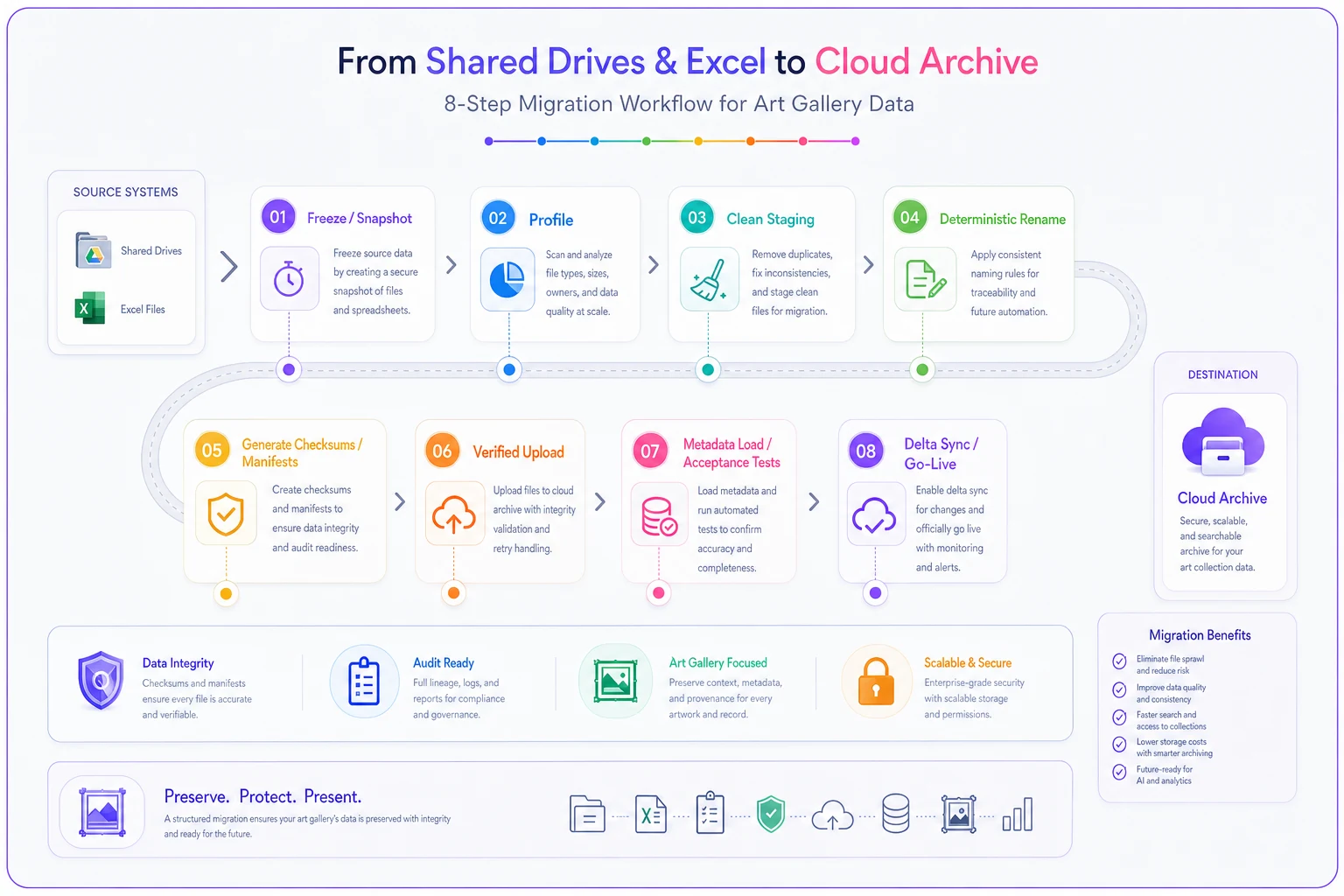
The rest of this article drills into the steps that actually eat people's weekends: cleaning (step 3), file naming (step 4), fixity (step 5), and transfer verification (step 6).
Steps 2–3: Data cleaning, with actual regex you can use
Excel exports from galleries are predictable in their chaos. The same five problems show up almost every time.
Profiling first
``python
import pandas as pd
df = pd.readcsv("stagingartworks.csv", dtype=str, keepdefaultna=False)
# distinct values in the worst columns
for col in ["Dimensions", "Medium", "Year", "Price"]:
print(col, df[col].nunique(), "distinct values")
print(df[col].value_counts().head(10))
# duplicate canonical IDs — the thing that silently breaks joins
dupes = df[df.duplicated("AccessionNo", keep=False)]
print("Duplicate IDs:", len(dupes))
``
If that duplicate count is anything other than zero, stop and fix it before continuing. Duplicate IDs poison every later step.
The common Excel pitfalls and their fixes
| Problem | What it looks like in the cell | Regex / transform | Result |
|---|---|---|---|
| Leading apostrophe on numbers | '1998 | ^' → `` (empty) | 1998 |
| Mixed dimension formats | 30 x 40 cm, 30x40, H30 W40 | see below | normalized 30 x 40 cm |
| Smart quotes in titles | "Untitled" → "Untitled" | [\u201C\u201D] → " | straight quotes |
| Trailing whitespace / double spaces | Oil on canvas | \s+ → then .strip() | Oil on canvas |
| Dates stored as serial numbers | 43831 | Excel serial → date | 2020-01-01 |
| Currency mixed with text | $4,500 (sold) | [^0-9.] stripped into a price field; status parsed separately | 4500 + status sold |
For dimensions specifically, the reliable approach is to extract the numbers and rebuild the string rather than patch in place:
``python
import re
def normalize_dims(val):
# pull all numbers (including decimals)
nums = re.findall(r'\d+\.?\d*', val)
unit = "cm" if re.search(r'cm', val, re.I) else ("in" if re.search(r'"|in\b', val, re.I) else "cm")
if len(nums) == 2:
return f"{nums[0]} x {nums[1]} {unit}"
if len(nums) == 3:
return f"{nums[0]} x {nums[1]} x {nums[2]} {unit}"
return val # flag for manual review
``
Anything that falls through to the return val line gets exported to a needs_review.csv. In a collection of a few thousand works, you'll typically have somewhere between 30 and 80 dimension strings weird enough that a human has to look at them. That's fine — the point is to isolate them, not pretend the regex caught everything.
The mistake to avoid: doing find-and-replace directly in Excel across the whole sheet. One over-broad replace and you've silently corrupted 200 records with no way to know which ones. Transform in a script, keep the original column, diff the before and after.
Crosswalk: mapping your messy source columns to clean target fields
Your spreadsheet columns almost never match your new archive's field names one-to-one. Build a crosswalk before you import. Here's a typical mapping for a small commercial gallery moving off a hand-built sheet:
| Source column (Excel) | Target field | Transform notes |
|---|---|---|
Artwork Name / Title | title | trim, fix smart quotes |
Artist | artist_name | split into artistfirst / artistlast if system requires |
Ref / Inv # | accession_no | canonical ID — must be unique |
Dimensions | dimensionsdisplay + heightcm, width_cm | normalize, then parse into numeric fields |
Medium/Materials | medium | controlled vocabulary cleanup |
Year | date_created | strip apostrophes, handle c.1998 → circa flag |
Price | price + currency + status | split numeric from (sold) text |
Location | current_location | map free text to location codes |
Photo / blank | master_filename | derive from accession_no (see next section) |
The crosswalk itself should live as a CSV in your migration folder. It's documentation and a machine-readable map you can drive the transform from. When a field doesn't map cleanly, write the rule down rather than making an ad-hoc call you'll forget about by next week.
Step 4: Deterministic file naming and canonical paths
This is where legacy filenames go to die, and good riddance. IMG_2231.jpg tells you nothing. Rename every image to a deterministic name built from the canonical ID.
``
{accessionno}{role}_{seq}.{ext}
``
Naming standard:
-
GAL-2024-0417master01.tif— the archival master -
GAL-2024-0417web01.jpg— a web derivative -
GAL-2024-0417detail02.tif— a second master, detail shot
Rules that save you later:
-
Lowercase extensions, always.
.JPGvs.jpgwill bite you on case-sensitive cloud storage. -
Zero-padded sequence numbers (
01, not1) so sorting stays correct past nine images. -
No spaces, ever. Underscores and hyphens only.
-
The accession number is the join key between the file and its metadata row.
If your source files are matched to records by an existing Photo column, build a rename map first and review it before executing:
``bash
# renamemap.csv has columns: oldpath,newname
while IFS=, read -r old new; do
cp "$old" "masters/${new}"
done < renamemap.csv
``
Copy, don't move, during the first pass. If the map is wrong, your originals are still sitting in the snapshot untouched.
Recommended storage architecture
Keep the layout boring and predictable. Three top-level roles, mirrored structure under each:
``
archive/
├── masters/        # untouched archival files, write-once
│   └── GAL-2024-0417master01.tif
├── derivatives/    # web, thumbnail, print — regenerable
│   ├── web/
│   └── thumb/
├── backups/        # a second copy, ideally different provider/region
└── manifests/      # checksums, BagIt bags, crosswalks
``
The principle: masters are write-once and never edited. Derivatives are disposable — you can always regenerate a web JPEG from a master, so they don't need the same backup rigor. Backups live somewhere physically and administratively separate from masters. If your masters are in AWS S3, put a backup copy in a different region or on a different provider entirely. One bad sync --delete on the wrong flag should never be able to wipe both.
Step 5: Fixity and manifests — proving nothing broke
This is the step small galleries skip and later regret.
Fixity means you have a cryptographic fingerprint of every file at the source, and you can confirm the exact same file arrived intact at the destination. Without it, "I think the upload worked" is the best you can say.
``bash
cd masters
sha256sum * > ../manifests/masters_sha256.txt
``
For a proper preservation-grade package, use BagIt, which bundles your files, checksums, and metadata into a self-validating structure:
``bash
# using bagit-python
bagit.py --sha256 --contact-name "Gallery Archive" masters/
# later, to verify:
bagit.py --validate masters/
``
A valid bag is your receipt. If --validate passes on both ends, you have mathematical proof that every byte survived the move. When a funder, insurer, or auditor asks how you know your archive is intact, a validated BagIt manifest is a far better answer than a shrug.
Fixity isn't a one-time migration task either. Re-run validation quarterly. Silent bit-rot and accidental overwrites are real, and the only way you catch them early is a periodic checksum sweep against your original manifest.
Step 6: Verified transfer with real commands
The non-negotiable rule: verify checksums on the destination, don't trust that the transfer tool got it right.
Using rclone (works across most cloud providers)
``bash
# configure remote once: rclone config
# then copy with checksum verification and no deletes
rclone copy masters/ archive-remote:gallery-archive/masters/ \
--checksum --transfers 4 --progress
# verify afterward — this compares hashes, not just sizes
rclone check masters/ archive-remote:gallery-archive/masters/ --checksum
``
Using the AWS CLI with multipart for large TIFFs
``bash
# multipart upload kicks in automatically for large files
aws s3 cp masters/ s3://gallery-archive/masters/ \
--recursive --storage-class STANDARDIA
# verify a known file's checksum matches
aws s3api head-object --bucket gallery-archive \
--key masters/GAL-2024-0417master_01.tif
``
Using gsutil (Google Cloud)
``bash
gsutil -m cp -r masters/* gs://gallery-archive/masters/
gsutil hash -h masters/GAL-2024-0417master01.tif # compare to stored value
``
The --checksum and verification flags matter more than they look. A transfer that compares only file size will happily accept a corrupted file that happens to be the right length. Always verify by hash.
For masters you'll rarely touch, infrequent-access storage classes (STANDARD_IA, Nearline) cut storage cost meaningfully. Derivatives that get served to a website belong in standard hot storage.
Steps 7–8: Image processing, delta sync, and going live
Master and derivative specs
-
Masters TIFF (uncompressed or LZW), embedded ICC profile. Capture and keep in a wide gamut — Adobe RGB at minimum, or ProPhoto if your capture workflow supports it. Don't throw away color data at the master stage; you can't get it back.
-
Web derivatives sRGB JPEG, longest edge ~2000px, quality ~85. sRGB because that's what browsers assume, and a wide-gamut JPEG on the web looks wrong.
-
Thumbnails sRGB JPEG, ~400px, quality ~75.
Batch-generate derivatives from masters with ImageMagick:
``bash
for f in masters/*.tif; do
base=$(basename "$f" .tif)
convert "$f" -colorspace sRGB -resize 2000x2000 -quality 85 \
"derivatives/web/${base}.jpg"
convert "$f" -colorspace sRGB -resize 400x400 -quality 75 \
"derivatives/thumb/${base}.jpg"
done
``
Because derivatives are regenerable, this script is your backup strategy for them. Lose the web folder, re-run the loop.
Delta sync and conflict policy
-
Re-export the source, filtered to records changed after the freeze date.
-
Run the same cleaning transforms.
-
Append to the new system, never overwrite.
-
Conflict policy if a record exists in both and differs, the source snapshot wins for migration purposes, and the delta changes get applied as explicit edits with a reviewer initialing each one. Don't let an automated merge silently pick a winner.
Acceptance tests before you flip the switch
Run a concrete pass/fail checklist. Go-live only happens when every box is checked:
-
[ ] Record count in new system = cleaned source count (exactly)
-
[ ] Zero duplicate accession numbers
-
[ ] Every master file has a matching metadata record, and vice versa
-
[ ] BagIt validation passes on the destination copy
-
[ ] 20 random records spot-checked by hand against the snapshot
-
[ ] Every image displays and links to the correct work
-
[ ] Permissions/ACLs applied and tested with a non-admin account
-
[ ] Backup copy exists in a separate region/provider and validates
Go-live only happens when every box is checked.
Permissions, performance, and sizing
ACL mapping
| Role | Masters | Derivatives | Metadata | Delete rights |
|---|---|---|---|---|
| Director/Admin | read | read/write | read/write | yes (logged) |
| Registrar | read | read/write | read/write | no |
| Front-of-house | read (web only) | read | read | no |
| External (web/consultant) | none | read (public set) | limited | no |
The write-once principle on masters should be enforced by permissions, not just discipline. Almost nobody needs delete rights on an archival master. Granting them "just in case" is how irreplaceable files vanish.
Performance sizing heuristics
-
Master TIFFs often run 30–120 MB each. A 3,000-work collection with roughly two masters apiece lands somewhere in the 200–600 GB range.
-
On a normal business broadband upload (say 20–40 Mbps up), the first full upload of several hundred GB can take a day or more of wall-clock time. Run it over a weekend, use
--transfers 4to parallelize, and expect to babysit it. -
Budget storage on the master footprint plus roughly 10–15% for derivatives, and double the master figure if your backup lives in a second provider.
For a collection of a few thousand works with multiple shots each, rough planning numbers above will help size bandwidth and storage costs.
A realistic migration scenario
A two-person contemporary gallery had about 2,400 works tracked across three Excel files and a shared Dropbox with roughly 6,800 images. Filenames were a mix of camera defaults and inconsistent manual names; maybe a third of images weren't clearly matched to a record.
The profiling pass alone surfaced 41 duplicate reference numbers and around 190 dimension strings that didn't parse. Cleaning and building the rename map took the bulk of the effort — close to three working days spread over a week. The actual upload, once files were renamed and checksummed, ran overnight across a weekend.
The payoff wasn't dramatic in a headline sense, but it was real: every image now resolves to exactly one work, nothing is editable in the master folder by accident, and a validated BagIt manifest means the registrar can answer integrity questions in a sentence instead of a shrug. The flagged dimensions got cleaned by hand over the following month — isolated, not lost.
When this full process makes sense (and when it's overkill)
Do the full fixity-and-BagIt treatment if you hold work you'd be unable to re-photograph, if you have loan or insurance obligations, or if provenance documentation matters. For those collections, the manifests are worth more than the storage cost.
You can lighten up if you're a small commercial gallery whose archive is really just sale-ready web images of currently available inventory, and whose masters live safely on the photographer's drives anyway. In that case, deterministic naming and a verified rclone copy get you most of the value without the BagIt ceremony.
Who should not run this solo: if your source data is so tangled that your duplicate-ID count is in the hundreds, don't push through on willpower. Fix the identifiers first, as a separate project, before any migration. Trying to clean IDs and migrate in the same pass is how weekends turn into months.
The one thing to get right
Freeze your source, keep a dated read-only snapshot, and verify every transfer by checksum. Those three habits are what separate a migration you can roll back from one you can only hope worked out. The regex and the storage layout matter, but they're recoverable mistakes. A corrupted upload you never checked, overwriting a master you can't reshoot — that's the one that doesn't come back.
Get your canonical ID locked, your masters write-once, and your manifests validating on both ends. Everything else is just careful copying.
Freeze your source, keep a dated read-only snapshot, and verify every transfer by checksum. Those three habits are what separate a migration you can roll back from one you can only hope worked out. The regex and the storage layout matter, but they're recoverable mistakes. A corrupted upload you never checked, overwriting a master you can't reshoot — that's the one that doesn't come back.
Ready to elevate your gallery operations?
Join 500+ galleries using Artioly to streamline operations, boost visitor engagement, and increase art sales.