



Most galleries pick software backwards. They watch a slick demo, fall for a clean interface, then spend the next eight months forcing their actual workflows into a tool that was never built for how they operate. By then the trial's over, half the data is in, and switching feels impossible.
The better path is boring but reliable: write down what you actually do every day with your objects, translate those routines into specific features, then judge vendors against that list. This guide walks through exactly that — a feature-to-workflow matrix, minimum metadata you shouldn't launch without, the hosted vs self-hosted question, honest cost bands, and an 8-step migration plan you can run without losing a single record.
If you've already read our earlier buyer's guide on choosing artwork archive software, think of this as the hands-on companion — less about whether to buy and more about how to spec, compare, and migrate safely.
Start with the workflows, not the feature list
Two galleries of the same size can have wildly different software needs. One does mostly primary-market sales with living artists and rarely lends work. Another handles estates, does frequent loans, and licenses images monthly. If they both buy the same "top-rated" tool, one of them is going to be miserable.
So before comparing anything, map your real collection workflows. Not the idealized version — the messy one that actually happens on a Tuesday.
The six workflows that drive almost every requirement for a small gallery:
-
Accessioning — how a new object enters your records and gets a permanent ID
-
Condition reporting — how you document state, changes, and damage over time
-
Loans — outgoing and incoming, with agreements, dates, and insurance values
-
Provenance — ownership history and the documentation that backs it
-
Rights and licensing — who can reproduce what, under what terms, for how much
-
Image handling — capture, versioning, storage, and linking images to records
Map the messy exceptions (the Tuesday cases) — those usually reveal the true requirements.
Each of these becomes a set of features. The trick is being specific. "Loan management" is meaningless. "Can generate a loan agreement, track outgoing/incoming status, log insurance value, and alert me 14 days before a return date" is a requirement you can actually test.
The feature-to-workflow decision matrix
This is the core tool.
Print it, fill in the "must-have vs nice-to-have" column for your gallery, then score each vendor against it. Anything a vendor can't do in your must-have rows is a dealbreaker, no matter how nice the rest looks.
| Workflow | Feature the software must handle | Must-have or nice-to-have? | How to test it in a demo |
|---|---|---|---|
| Accessioning | Auto-generate unique accession numbers with a custom format | Must | Ask them to create 3 records live and show the numbering rule |
| Accessioning | Bulk import from spreadsheet with field mapping | Must (for migration) | Have them import a 20-row sample of your data |
| Condition reporting | Attach photos to a dated condition record, not just the object | Must | Create a condition report, add 2 images, then edit it a week later (check version history) |
| Condition reporting | Compare condition entries side by side over time | Nice | Ask to see two reports for the same object stacked |
| Loans | Track loan status, dates, borrower, insurance value | Must | Set up an outgoing loan with a return date and trigger an alert |
| Loans | Generate a loan agreement / facility report | Nice | Ask for a sample PDF output |
| Provenance | Chronological ownership chain with source documents attached | Must | Add 3 provenance events and attach a PDF to one |
| Provenance | Flag gaps or uncertain entries | Nice | Ask how they mark an unverified owner |
| Rights & licensing | Record rights holder, license terms, expiry per image | Must (if you license) | Create a license record tied to one image with an end date |
| Rights & licensing | Alert on expiring licenses | Nice | Check whether expiry triggers a reminder |
| Image handling | Store high-res masters + auto-generate display copies | Must | Upload a 40MB TIFF and see what it stores/derives |
| Image handling | Link one image to multiple records (editions, details) | Nice | Attach one image to two objects |
| Search & reporting | Filter across any field and export the result | Must | Ask for "all works on loan, insured over $10k, exported to CSV" |
| Access control | Different permission levels for staff, interns, volunteers | Must (if you have a team) | Create a read-only user |
That last row matters more than most people expect. When interns and volunteers touch your records, uncontrolled edit access is how provenance notes quietly get overwritten. If you're building out roles for a mixed team, this ties directly into how you structure accessibility and permissions for small teams.
Minimum metadata templates: what every record needs before you launch
The most common migration failure isn't technical — it's that galleries import records with wildly inconsistent fields. Half the objects have dimensions in centimeters, half in inches, some have no medium recorded, and artist names are spelled three different ways.
Object core (required for every single record):
-
Accession number (your permanent unique ID)
-
Artist / maker (standardized name — pick one spelling and stick to it)
-
Title (or "Untitled" with a descriptor)
-
Date or date range of creation
-
Medium / materials
-
Dimensions (with a fixed unit — decide cm or inches gallery-wide)
-
Current location
-
Acquisition method and date
Add for anything you might lend or insure:
-
Insurance / replacement value with the date it was set
-
Condition status (a simple controlled term
good / fair / needs attention)
-
Framing or mounting notes
Add for anything you might license or reproduce:
-
Rights holder
-
Reproduction permissions (yes / no / restricted)
-
Any existing license terms and expiry
A realistic pattern: a gallery with around 600 works discovers during migration that only about 380 have a recorded medium, and maybe 150 have any condition note at all. That's not a disaster — it just means the migration doubles as a data-cleaning project, which is exactly why the plan below has cleaning baked in rather than bolted on.
Hosted vs self-hosted: the tradeoff that actually matters at your size
For most small galleries this decision is simpler than vendors make it sound.
Hosted (cloud / SaaS) makes sense when:
-
You have no in-house IT and don't want any
-
You need access from home, art fairs, or a borrower's site
-
You'd rather pay predictably than manage backups
-
Your team is small and you want updates handled for you
Self-hosted makes sense when:
-
You have genuine institutional reasons to keep data on your own servers
-
You have someone technical who actually maintains it (not "our web guy who's around sometimes")
-
You have specific data-residency or donor requirements
The trap with self-hosted is the invisible labor. The license might be cheaper, but someone has to patch it, back it up, and be there when it breaks the night before a loan ships. Smaller organizations that go self-hosted "to save money" usually find it costs more once you count the staff hours nobody budgeted for.
For a gallery under roughly 5,000 objects with a lean team, hosted is almost always the right call. Just confirm two things in writing: that you can export all your data in an open format at any time, and where their servers and backups physically live.
Cost bands: what you'll actually pay
Prices move around, but the bands are stable enough to plan against. These reflect what small galleries typically run into, not enterprise museum pricing.
| Tier | Typical annual cost | What you get | Fits |
|---|---|---|---|
| Entry / lightweight | roughly $0–$1,200 | Basic cataloguing, limited users, minimal loan/rights features | Very small collections, single operator |
| Small-gallery standard | around $1,500–$4,000 | Full accessioning, condition, loans, image handling, a few users | Most small commercial galleries |
| Mid-tier / collections-focused | roughly $4,000–$9,000 | Deep provenance, rights modules, reporting, more seats | Galleries handling estates, frequent loans, licensing |
| Self-hosted / custom | one-time $3k–$15k+ plus maintenance | Full control, but ongoing staff cost | Organizations with IT capacity |
Two cost warnings worth flagging. First, watch for per-record or storage-based pricing — a gallery that grows its image library fast can see costs creep in ways the intro price didn't hint at. Second, always ask what migration support costs. Some vendors bundle a basic import; others charge separately, and a rushed paid migration can add a few thousand to year one.
The 8-step migration and data-cleaning plan
Run this in order. Don't skip the sandbox step no matter how confident you feel.
-
Freeze and snapshot. Pick a cutoff date. Export everything from your current system (or spreadsheets) into one master file and back it up twice — one copy you never touch. Every migration horror story starts with someone editing the only copy.
-
Audit against your minimum metadata. Run through the required fields above. Flag every record missing core data. You now have a punch list, not a vague sense of "our data's a bit messy."
-
Standardize the controlled fields. Fix artist name spellings, unify dimension units, normalize medium terms, and set consistent condition status values. Do this in the spreadsheet, before import — it's much easier than cleaning inside the new system.
-
Map your fields to the new system. Sit with the vendor and match every column in your file to a field in their software. This is where you catch mismatches — like their system splitting "dimensions" into height/width/depth when yours had one field.
-
Import a sample of 20–30 records into a sandbox. Never bulk-import first. Load a small varied batch, then check that images linked correctly, dates parsed right, and nothing landed in the wrong field. Fix the mapping, repeat until clean.
-
Full import into a staging environment. Bring everything over, but keep it separate from live use until verified. Spot-check at least 5% of records across different object types.
-
Verify images and attachments. Images and PDFs break most often. Confirm masters uploaded, display copies generated, and every provenance or condition document is attached to the right record. This step alone catches a surprising number of silent failures.
-
Go live, keep the old system read-only for 90 days. Don't delete the old system the day you switch. Keep it accessible but frozen for three months so you can cross-check anything that looks off. After the window, archive the master export permanently.
Visual overview of the migration flow:
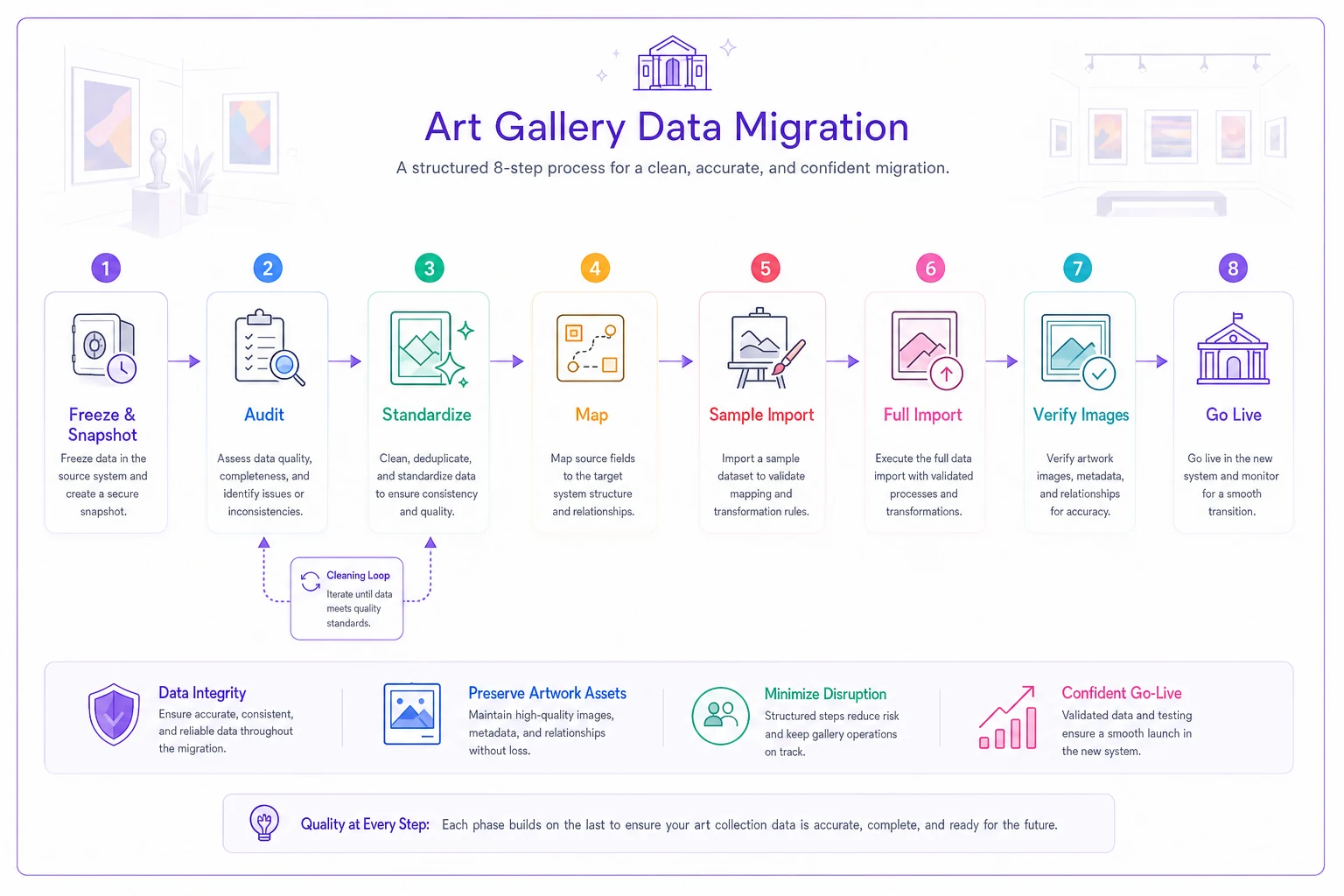
A gallery of around 700 works running this properly should expect the cleaning stages — steps 2 and 3 — to take the most time, often more than the import itself. Budget for that. The actual import is usually a day; cleaning data is where the weeks go.
Questions to ask every vendor before you commit
Bring these to the demo. The answers separate serious tools from pretty ones.
-
Can I export all my data — records, images, and attachments — in an open format, anytime, with no fee?
-
Where are your servers and backups located, and how often do you back up?
-
Is there a version history on condition and provenance records? Can I see who changed what?
-
How exactly does bulk import work, and will you run a sample of my data during evaluation?
-
What's included in migration support, and what costs extra?
-
How is pricing structured — per user, per record, per storage? What happens as my collection grows?
-
What permission levels exist for staff, interns, and volunteers?
-
If I cancel, what happens to my data and for how long can I retrieve it?
That last question is the one galleries forget and regret. Know your exit before you enter.
Build a simple evaluation spreadsheet
You don't need anything fancy. One sheet does it:
-
Column A every must-have and nice-to-have feature from the matrix above
-
Column B whether it's a must or nice for your gallery
-
Columns C, D, E one per vendor, scored 0 (can't do it), 1 (partial/workaround), 2 (does it cleanly)
-
A row at the bottom for annual cost and migration cost
Any vendor scoring 0 on a must-have is out, full stop, regardless of their total score. Among the survivors, the highest score that fits your budget wins. This keeps you from being swayed by a beautiful interface that can't actually track a loan return date.
When to slow down — and who shouldn't switch yet
Not every gallery should buy new software right now. If your collection is under a hundred objects and a well-structured spreadsheet is genuinely working, dedicated software is probably premature — get your metadata standard right first, and the eventual migration will be much less painful.
Slow down if you're mid-exhibition or heading into a busy loan season. Migrations need calm weeks, not a scramble between openings. And if your data is a genuine mess, do the cleaning as its own project before you shop — otherwise you'll pick a tool based on the wrong picture of your own collection.
Galleries that get this right treat software selection as an operations decision, not a shopping one. They understand their workflows first — the same discipline that makes their visitor and curation data actually useful and keeps their press and communications running without draining staff. Software makes a well-understood process faster. It can't fix one you never mapped.
Choosing artwork archive software isn't really about the software. It's about knowing your own collection workflows well enough to describe them as features, then refusing to compromise on the handful that matter most. Fill in the matrix, set your minimum metadata, run the 8-step migration with the sandbox step intact, and keep the old system read-only until you're certain. Do that, and the switch becomes a quiet upgrade instead of the year-long headache it is for galleries that bought the demo instead of the requirements.


